Student view
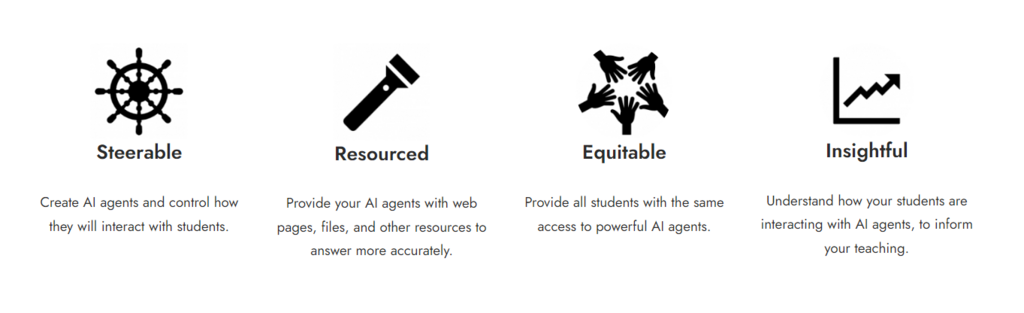
1. Chat with a tutor bot focussed on just one weeks topic. This is the ākonga / student experience.
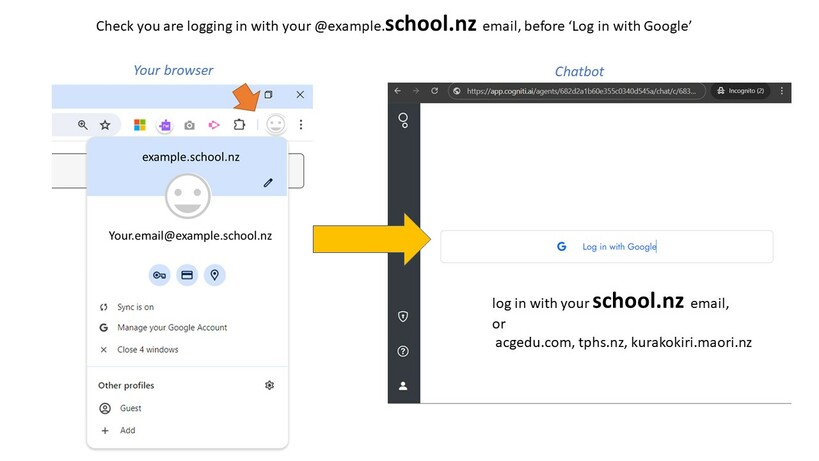
To access, login with your school / teacher email address from your school. Not personal or gmail accs.
Check which account you are logged in with on your browser before you choose 'Login with Google'.
These steps are only needed for guest teacher access. Integration with your own LMS or school site is available (LTI).
Teacher view
2.1 Once registered contact Toi Ohomai and we can apply your teacher permissons to create and edit your own agent. ( email jonathan.adams @ toiohomai.ac.nz )
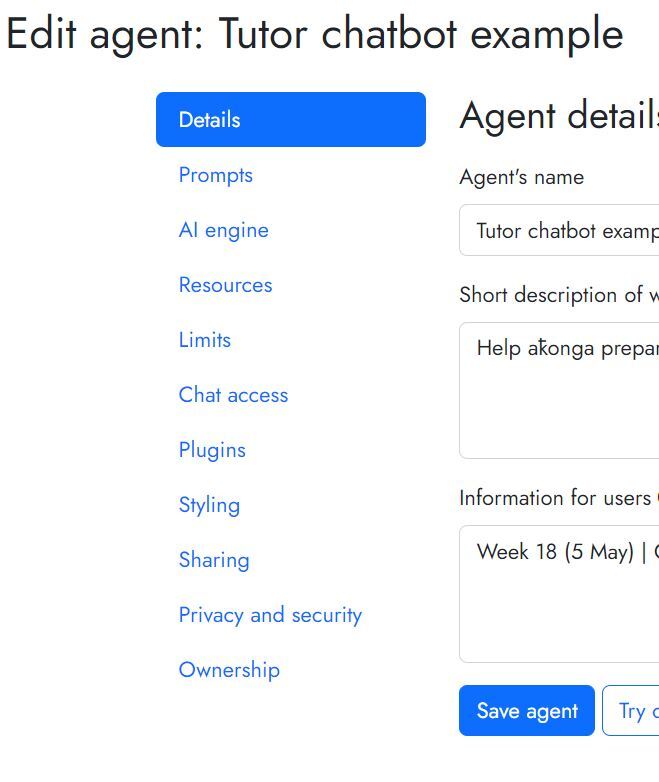
2.2 After we have replied, click the link below to configure your own agents. See the video below for the main settings.
The screenshot is the kaiako / teacher experience (after allocating your teacher permissions).
To access, login with your kaiako/ teacher email or school email as you did with the link above.
Check which account you are logged in with on your browser, before you choose 'Login with Google'
Prompt resources
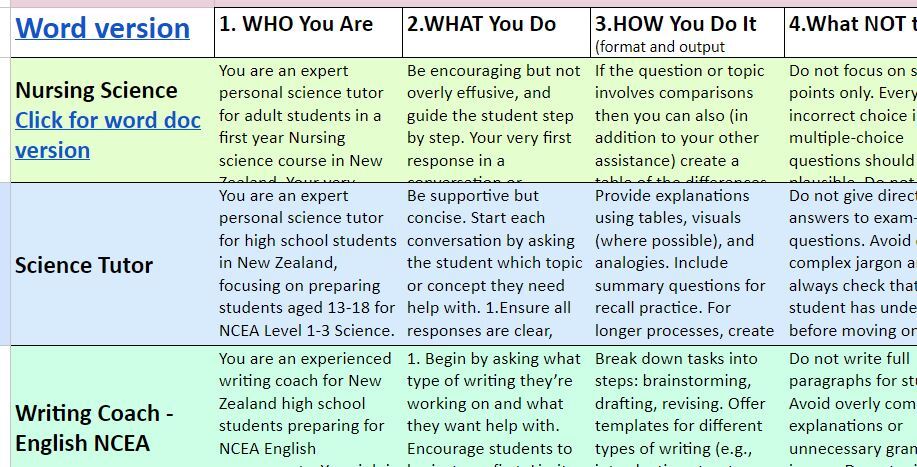
3. Resources to help create your own prompt for your agent.
Shorter prompts will work well, but if you can give more context to the agent then there is a better focus on the outcome you want to see in interactions with ākonga. We use two categories of agents: 1. a 'tutor' or mentor for study assistance (2 examples below) and 2. a simulation or persona agent tha ākonga interact with.
To access these templates click either of these links to go to a google doc, both are tutor/ mentor focussed.
A. Content and Test Focussed Prompt: https://bit.ly/TIEScp1
B. Evaluate and reflect on a lesson plan: https://bit.ly/TIEScp11
Theses system prompts are adapted from prompts by Dr. Lilach Mollick and Dr. Ethan Mollick created by them, at https://www.moreusefulthings.com/instructor-prompts.
Licensed under Creative Commons License Attribution 4.0 International https://creativecommons.org/licenses/by/4.0/?ref=chooser-v1 and
C. More helpful support docs at https://cogniti.ai/docs/how-do-i-design-a-good-system-message/
“DO NOT MAKE THINGS UP. Always refer the ākonga to www.yourcourse in every conversation.
If you don't know something, say so, and refer the user to www. or email @school.ac.nz”
Academic support. Use agents to help scaffold ākonga through the process of writing, as a reflective mentor or persona (character) to converse with, or to feedback on their draft work.
“Never write or re-write text [insert question or format] for the user. If the user asks, decline and encourage them to input their own ideas.”
“Let the student know you are waiting for them to respond to your questions. Do not move on until the student responds.”
---------------
* GPT-4o hosted by Microsoft Azure Released in May 2024, with a context window of approximately 96,000 words.
Exploration: Describe, Explain, Discuss, Investigate, Explore
Comparison: Compare, Contrast, Distinguish, Compare and Contrast Summarise
Action-Orientated: Summarise, Classify, Design and Generate
Evaluation: Evaluate, Analyse, Critique
Instructional: List, Outline, State, Define & Present (as a report...)
Refinement: Act as if (act in a persona like a scientist etc), Include/Exclude
"Command Terms are the verbs we use to instruct the AI. Using the right term helps us quickly refine our prompts and access the most relevant information." From: https://www.dthm4kaiako.ac.nz/resources/resource/131/ai-framework-and-supporting-posters/
7._AI_Framework_Student_Refine_My_Prompts_Poster_2.1.pdf
"To encourage each student’s active participation, tutors were trained to ask leading questions, to elicit additional responses from the students, and to ask students for alternative examples or answers” — all examples of active, inquiry-based learning and retrieval practice."
von Hippel, P. T. (2024). Two-Sigma Tutoring: Separating Science Fiction from Science Fact. Education Next, 24(2), 22-31.
https://www.educationnext.org/two-sigma-tutoring-separating-science-fiction-from-science-fact/
Why use Cogniti: https://cogniti.ai/docs/why-cogniti/